Keep your computer awake · Mac & Windows

Keep your computer awake on Mac and Windows

There are several ways to stop your machine sleeping at the wrong moment. This page covers all of them, from system settings to controlled auto clicking. Free download for Mac and Windows.

Official Green Dotter download

Green Dotter is available two official ways: install from the Microsoft Store, or download it directly from green-dotter.com. No account, email address or subscription is required.

Free. No account required.Mac and WindowsLocal app
Green Dotter’s compact bar on a desktop. It clicks at random points inside one safe area you chose, or wiggles the mouse. Touch the mouse and it pauses, waiting for you. Leave it and it carries on.

Set up in a minute.

Pick a mode and press Start. That's the whole job.

Click

Choose one exact spot, or draw a box and it clicks somewhere inside it. Clicks land at random intervals inside the range you set, so the rhythm isn't mechanical.

Wiggle

Nothing to pick. The mouse drifts a little, the way yours does while you read. Choose how long, press Start, and leave it.
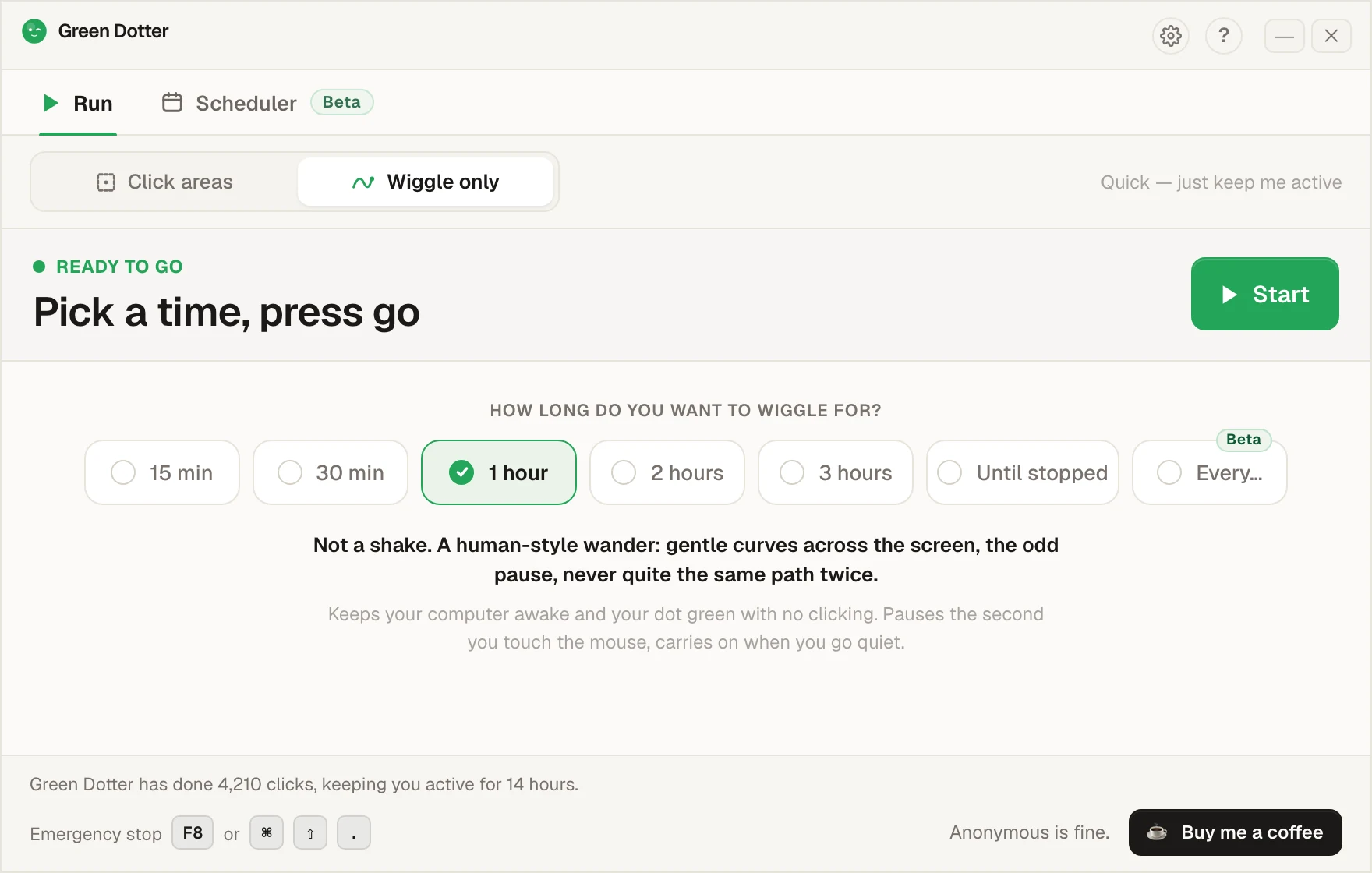
Green Dotter's main screen set to Wiggle only. A row of options offers 15 min, 30 min, 1 hour, 2 hours, 3 hours, Until stopped and Every, with 1 hour chosen, and a green Start button.

It steps aside when you take over.

Touch the mouse and it pauses, then carries on once you stop. While it runs it folds down to a small bar you can park in a corner.
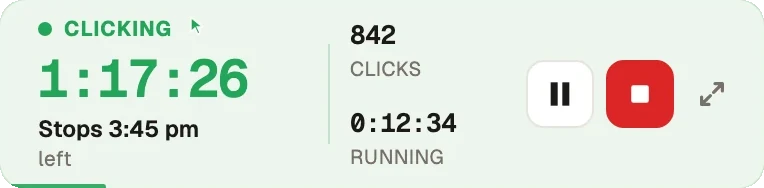
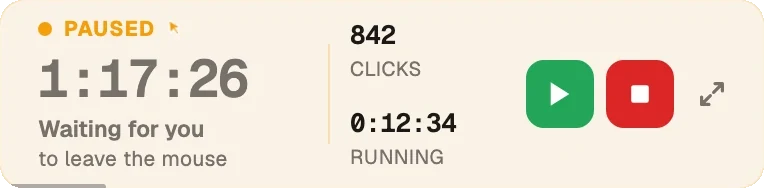
Green Dotter's compact bar while clicking: 1 hour 17 minutes left, stops at 3:45 pm, 842 clicks so far, with pause and stop buttons. The same bar in amber after the mouse was touched: Paused, waiting for you to leave the mouse, with resume and stop buttons.
Beta · new in 2.10

Set the week once.

Pick your days and hours, add a lunch break. Start and stop times shift by a few minutes each day, so it isn't clocking in at 9:00 sharp.
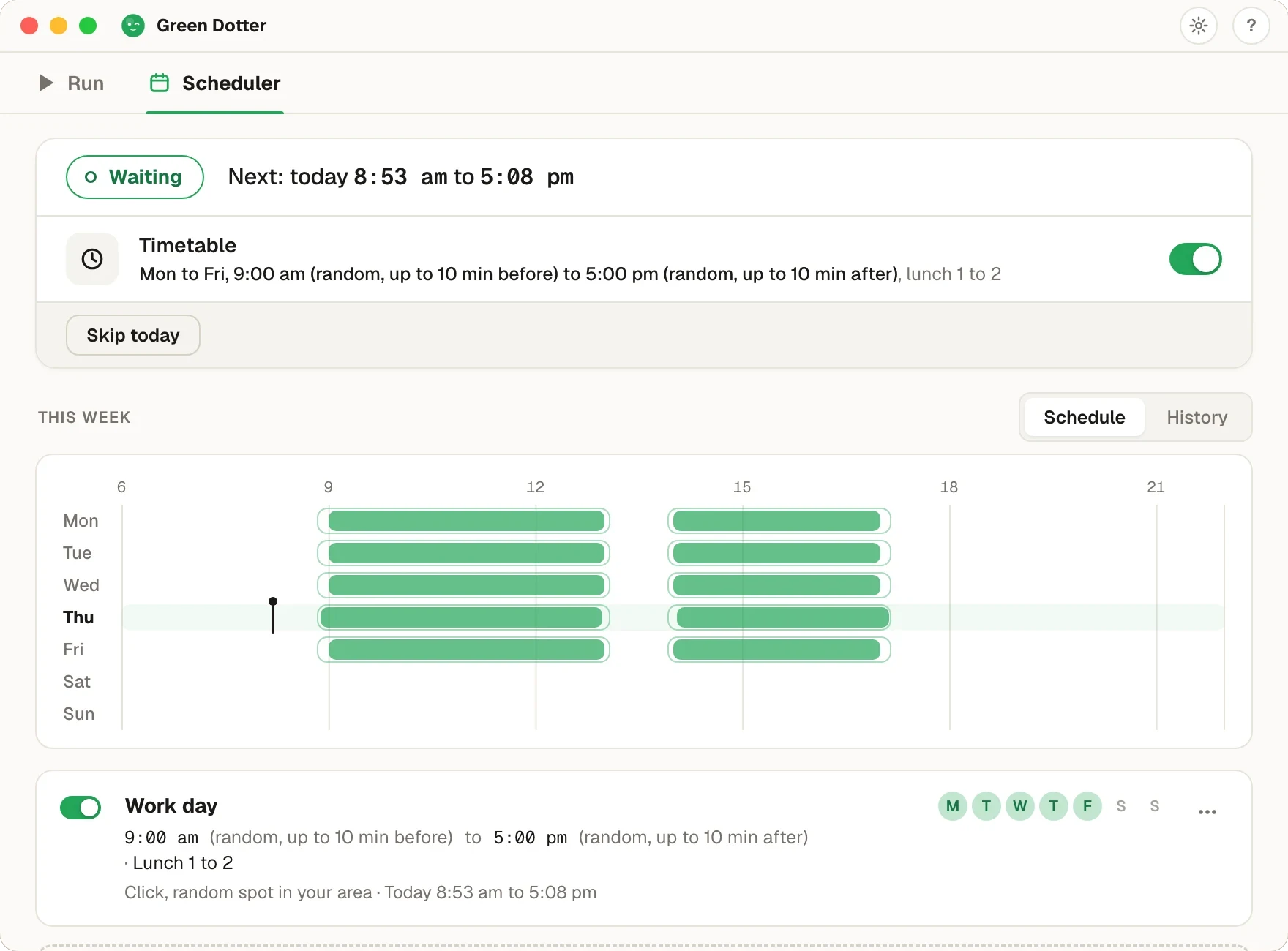
Green Dotter's Scheduler tab. Status Waiting, next run today 8:53 am to 5:08 pm. A Timetable for Monday to Friday, 9:00 am to 5:00 pm with random starts up to 10 minutes before and stops up to 10 minutes after, lunch 1 to 2. Below, a week strip with green bars on each weekday and a gap at lunch.

Green Dotter has to be open, the tray is fine, and your computer on and signed in. It can't wake a sleeping computer. It's new, so if something looks off, tell us.
Why does your computer keep going to sleep?

Mac and Windows both have power settings designed to reduce energy use and protect your device when it's not being used. That's a reasonable default for most situations. But idle timers don't know the difference between "genuinely doing nothing" and "reading a long document" or "waiting for a process to finish."

The machine sees no mouse or keyboard activity. So it dims the screen, locks, or sleeps. Common culprits:

  • Display sleep settings (can be as short as 2 minutes)
  • System sleep settings
  • Lock screen timers
  • Organisation-managed device policies that override your preferences

The fix depends on what you're trying to do and how much control you have over your device. Whether you'd put it as keeping the screen awake, stopping the PC going to sleep or just keeping the laptop on, the options below cover it.

Keeping a Mac awake with built-in settings

If you have full control of your Mac, system settings are the simplest starting point.

Display sleep: Go to System Settings → Displays → Advanced and adjust the screen sleep timer. Set it to "Never" when plugged in if you need extended sessions.

Lock screen: System Settings → Lock Screen lets you adjust how long before the screen locks after sleep begins.

Low Power Mode: On laptops, Low Power Mode can shorten idle timers. Turn it off during long sessions.

Limitation: On managed work Macs, your organisation may control these settings and you may not be able to change them. If that's the case, system settings aren't your answer. See the dedicated Mac auto clicker page for a controlled-activity option, or our guide to keeping your Mac awake.

Keeping a Windows PC awake with built-in settings

On Windows, power settings are straightforward to adjust.

Power & sleep settings: Settings → System → Power & sleep. Set screen and sleep timers to longer durations or "Never" when plugged in.

PowerToys Awake: Microsoft's free PowerToys suite includes an Awake utility. It keeps your machine awake for a set duration without changing your permanent power settings, useful for temporary sessions.

Limitation: On managed work Windows devices, Group Policy may override these settings. PowerToys may not be installable on locked-down machines. See the Windows auto clicker page for the controlled-clicking option.

What a mouse jiggler does

A mouse jiggler keeps a computer awake by moving the cursor, enough movement that the machine doesn't register as idle. Hardware jigglers are USB devices. Software jigglers run as apps. Both do the same thing.

They're simple and work well enough for basic keep-awake use. The limitation is control: a mouse jiggler moves the pointer, but doesn't let you choose where it goes or whether it clicks anything. For basic sleep prevention on a personal device, a mouse jiggler is fine. For anything that requires more precision, it starts to feel blunt. Green Dotter's mouse mover page covers the software kind in more detail.

When Green Dotter is more useful

Two modes. Wiggle only moves your mouse in a smooth, natural pattern. No setup, nothing gets clicked. Click areas clicks one exact spot you pick, or a random point inside a safe zone you draw, at random intervals. Both pause when you take back control, and both are more flexible than adjusting a power setting you’ll forget to change back.

That's more useful than a mouse jiggler when:

  • You need clicks, not just cursor movement
  • You want activity inside a specific part of the screen
  • You're running a long session on a machine where power settings are locked
  • You want the tool to get out of your way the moment you return
  • You want randomised timing rather than a mechanical fixed beat

It's a local app. No account. No cloud. Free.

Want it to start and stop on its own?Beta

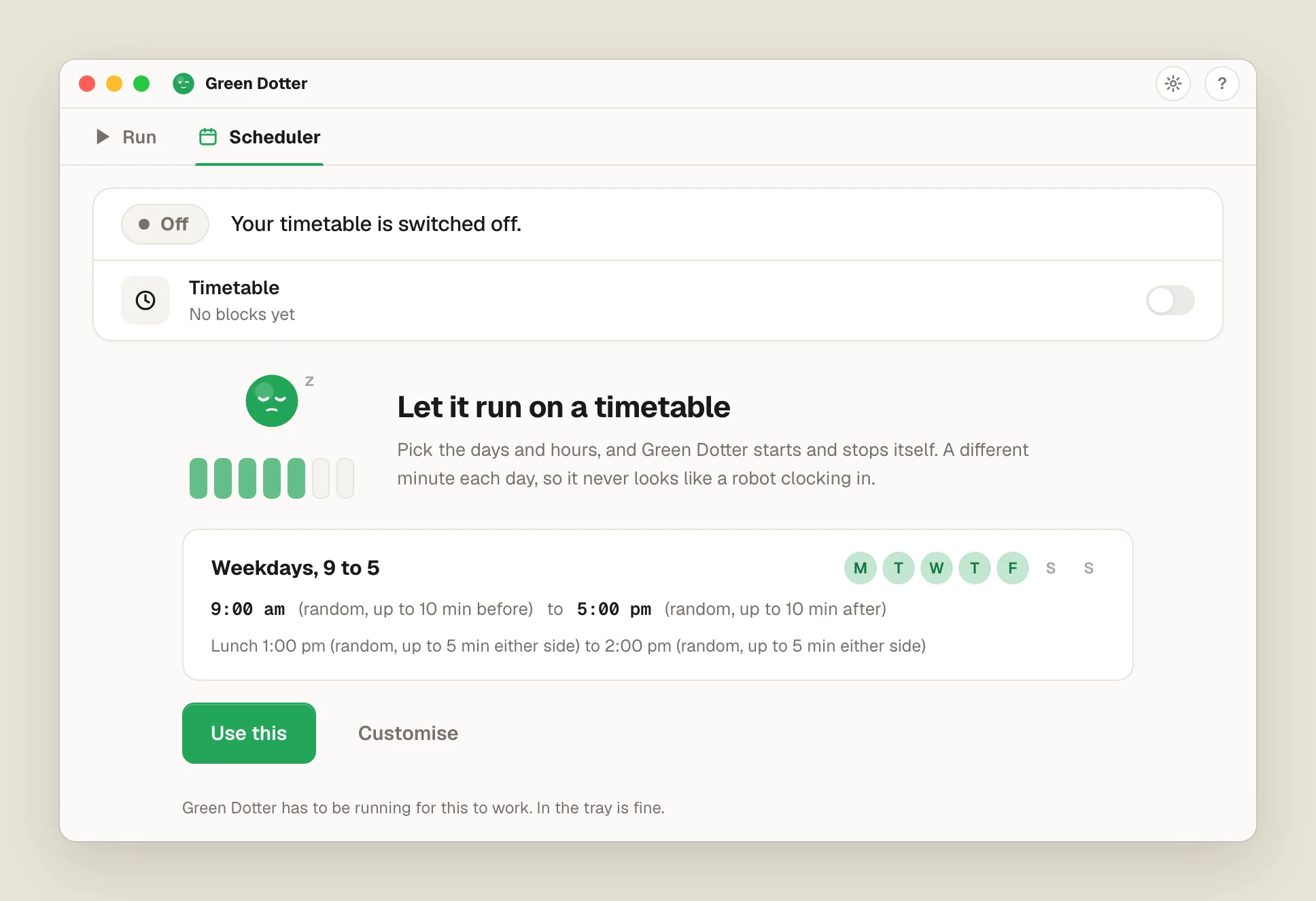
Green Dotter's Scheduler (beta) turns it into a mouse jiggler with a timer, or an auto clicker with a schedule. Pick the days and the start and stop times, and it starts and stops itself. Press Use this on the Weekdays, 9 to 5 card to be up and running in one click.

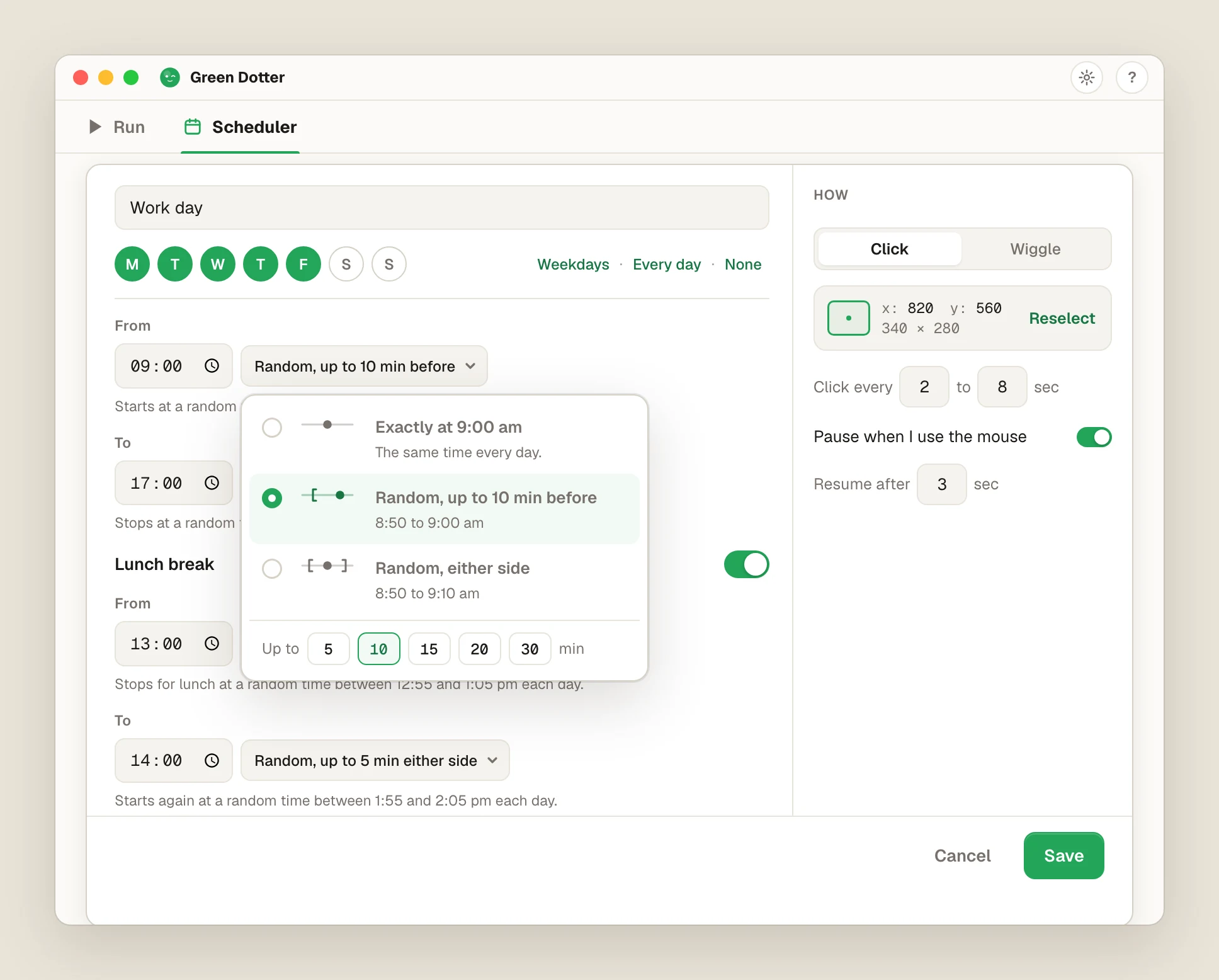
Make the times a little random if you like, such as starting up to 10 minutes before 9:00 and stopping up to 10 minutes after 5:00. Add a lunch break. The computer has to be on and signed in, and Green Dotter has to be running. In the tray is fine. It can't wake a sleeping computer.

Green Dotter's Scheduler tab on first run, light theme: Let it run on a timetable, with a Weekdays, 9 to 5 card (9:00 am random up to 10 min before, 5:00 pm random up to 10 min after, lunch 1:00 to 2:00 pm) and Use this and Customise buttons
Press Use this on the Weekdays, 9 to 5 card and you're set.
Green Dotter's block editor with the time picker open, light theme: Random, up to 10 min before is selected for the 9:00 start, next to Exactly at 9:00 am and Random, either side, with 5, 10, 15, 20 and 30 minute steps
Start and stop times can be exact or a little random.

A small bar that stays out of your way

While a session runs, Green Dotter folds down into a small bar. It shows how long is left and the clock time it will stop, like Stops 3:45 pm. Pause and stop buttons sit right beside it.

Set it going, leave it, and the screen stays awake without a big window sitting on your desktop. When you want the full window back, one click on the expand button does it.

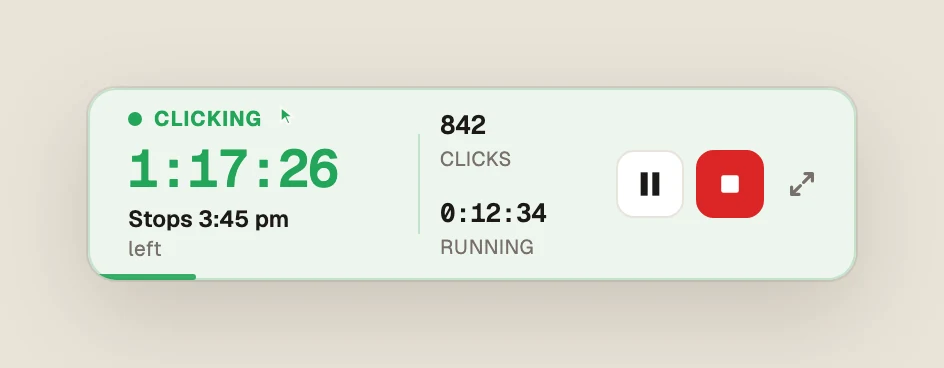
Green Dotter's compact bar while clicking, light theme: 1:17:26 left, Stops 3:45 pm, 842 clicks so far, with pause and stop buttons and an expand button
With a limit, it shows the time left and when it stops.
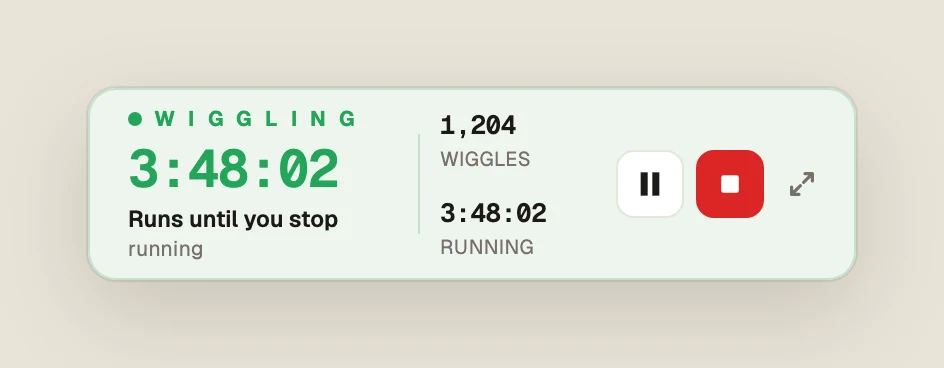
Green Dotter's compact bar while wiggling with no limit, light theme: 3:48:02 running, Runs until you stop, 1,204 wiggles so far
With no limit, it says it runs until you stop.

Which option is right for you?

OptionMacWindowsBest for
Built-in power settingsYesYesSimple, permanent sleep control
PowerToys AwakeNoYesTemporary Windows wake-lock
Mouse jigglerYesYesBasic cursor movement, sleep prevention
Green DotterYesYesClick mode or human-style wiggle mode. Auto-pause. Free.

If you just need the screen to stay on, start with power settings or a keep-awake utility. If you need controlled activity in a specific screen area, Green Dotter is the better fit. More in our guide to keeping your computer awake without changing every setting.

A note on managed devices

On organisation-managed devices, some power and activity settings may be locked. Check what's allowed before changing settings or installing tools. Green Dotter is a local desktop utility. It performs click actions inside the area you configure. Use it for legitimate desktop automation purposes and check your workplace policies if you're unsure.

Common questions

Go to System Settings → Displays → Advanced and increase the screen sleep timer. On managed Macs this may be restricted. Green Dotter can help with controlled desktop activity when system settings aren't enough.
Go to Settings → System → Power & sleep and adjust the timers. Microsoft PowerToys Awake is a good free option for temporary sessions. Green Dotter works for controlled clicking on Windows too.
For basic sleep prevention, often yes. If you need controlled clicks in a specific screen area, Green Dotter gives you more precision.
Yes. Clicking inside a safe area keeps your machine active during controlled sessions.
Yes. It's a local app. No internet connection needed.
Yes. No trial, no subscription, no account required.
Check your employer's policies first. Green Dotter is a local desktop tool, but you should confirm your use is allowed on managed devices.
Yes. Since version 2.9.1, Green Dotter folds into a small bar while a session runs, showing the time left and when it will stop. Turn it on in Settings, or press the shrink button next to Pause and Stop. One click on expand brings the full window back.
Yes. Since version 2.10, the Scheduler tab lets you pick the days and the start and stop times, and Green Dotter starts and stops itself. Times can be exact or a little random, like starting up to 10 minutes before 9:00 and stopping up to 10 minutes after 5:00. You can add a lunch break, and it works for both Click and Wiggle. It's in beta.
No. The computer needs to be on and signed in, and Green Dotter has to be running. In the tray is fine. It can't wake a sleeping computer. If the computer sleeps or the screen locks during a scheduled stretch, the schedule pauses and carries on when you're back, and the History tab shows the gap.

Official Green Dotter download

Official Green Dotter download

Green Dotter is available two official ways: install from the Microsoft Store, or download it directly from green-dotter.com. No account, email address or subscription is required.

Get Green DotterControlled clicks, simple setup. Green Dotter clicks where you tell it to, on a natural schedule, and gets out of your way when you're back. Free.