Click one spot or an area you draw, or move the mouse the way a person would. Touch the mouse and it pauses. Leave it and it carries on.
Free, and no account needed. It runs on your computer, nothing lives in the cloud.
Pick a mode and press Start. That's the whole job.
Choose one exact spot, or draw a box and it clicks somewhere inside it. Clicks land at random intervals inside the range you set, so the rhythm isn't mechanical.
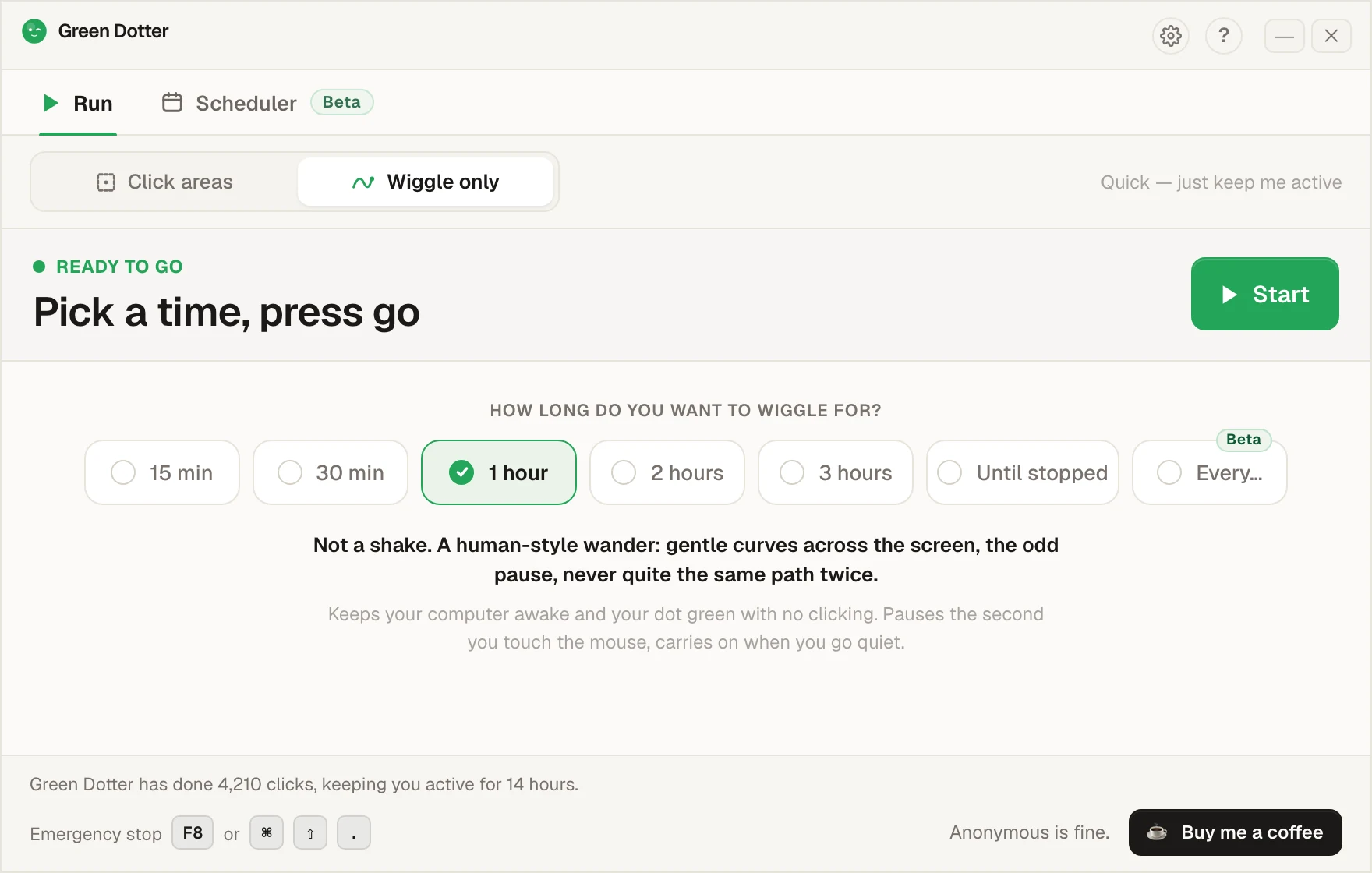
Nothing to pick. The mouse drifts a little, the way yours does while you read. Choose how long, press Start, and leave it.
Touch the mouse and it pauses, then carries on once you stop. While it runs it folds down to a small bar you can park in a corner.
Pick your days and hours, add a lunch break. Start and stop times can shift by a few minutes each day, or stay exact.
Green Dotter has to be open, the tray is fine, and your computer on and signed in. It can't wake a sleeping computer. It's new, so if something looks off, tell us.
Pick a spot or draw an area, hit Start. Go make an actual coffee.
Draw a box over a harmless area where clicks will not send, submit, or change anything important. Five seconds, done.
It runs quietly in the background while you focus on something else. You don't need to babysit it or keep the window open.
Random spot, random interval, every time, inside the limits you set.
Switch to Wiggle only and Green Dotter moves your mouse in a smooth, gentle pattern. No clicks, no target area, no setup. Just on and gone.
Touch the mouse and it pauses. Starts again once you stop. You won't notice it's there.
Target area, timing, stop condition, all of it visible at once. Nothing hidden in a menu somewhere.
After X clicks, after Y minutes, or at a time you set. Walks away on its own when it's done.
F8 or ⌘⇧. from anywhere. Doesn't matter what's in front of it.
Swap the green dot for a plain, unbranded app icon so Green Dotter sits quietly among your other apps in the tray, menu bar and Dock. A setting, not the default.
Screen stays on and sleep mode stays off while your session is running. Simple, controlled, and easy to stop.
Two modes, one free app. Click one exact spot or a safe area, or wiggle your mouse naturally. Mac and Windows.
Pick Click areas and choose the target: one exact spot, or an area to click somewhere inside. Green Dotter clicks it at random intervals. Pick Wiggle only and it moves your mouse in a smooth, natural drift. No clicking, no target to set. Both modes pause the moment you touch the mouse yourself.
Auto-click a spot on your screen, or just wiggle the mouse to keep your computer awake and your status active. Same app, two modes. Here's each.
Pick one exact spot, or a safe area to click somewhere inside, and Green Dotter clicks it at random intervals. Clicks so far, next click, and elapsed time stay in view.
Target, timing, stop condition, and system options, laid out as cards you can take in at a glance.
Pick how long and Green Dotter keeps your mouse and computer active. The timer counts down while you stay present. No targeting, no clicking.
In both modes, touch your mouse and it pauses, then resumes once you stop. There's a dark theme too if you prefer it.
Pick the days and the start and stop times, and Green Dotter does the rest. It's an auto clicker with a schedule and a mouse jiggler with a timer, in one free app.
Press Use this on the Weekdays, 9 to 5 card and you're done. Or pick your own days and hours, and add a lunch break if you want one.
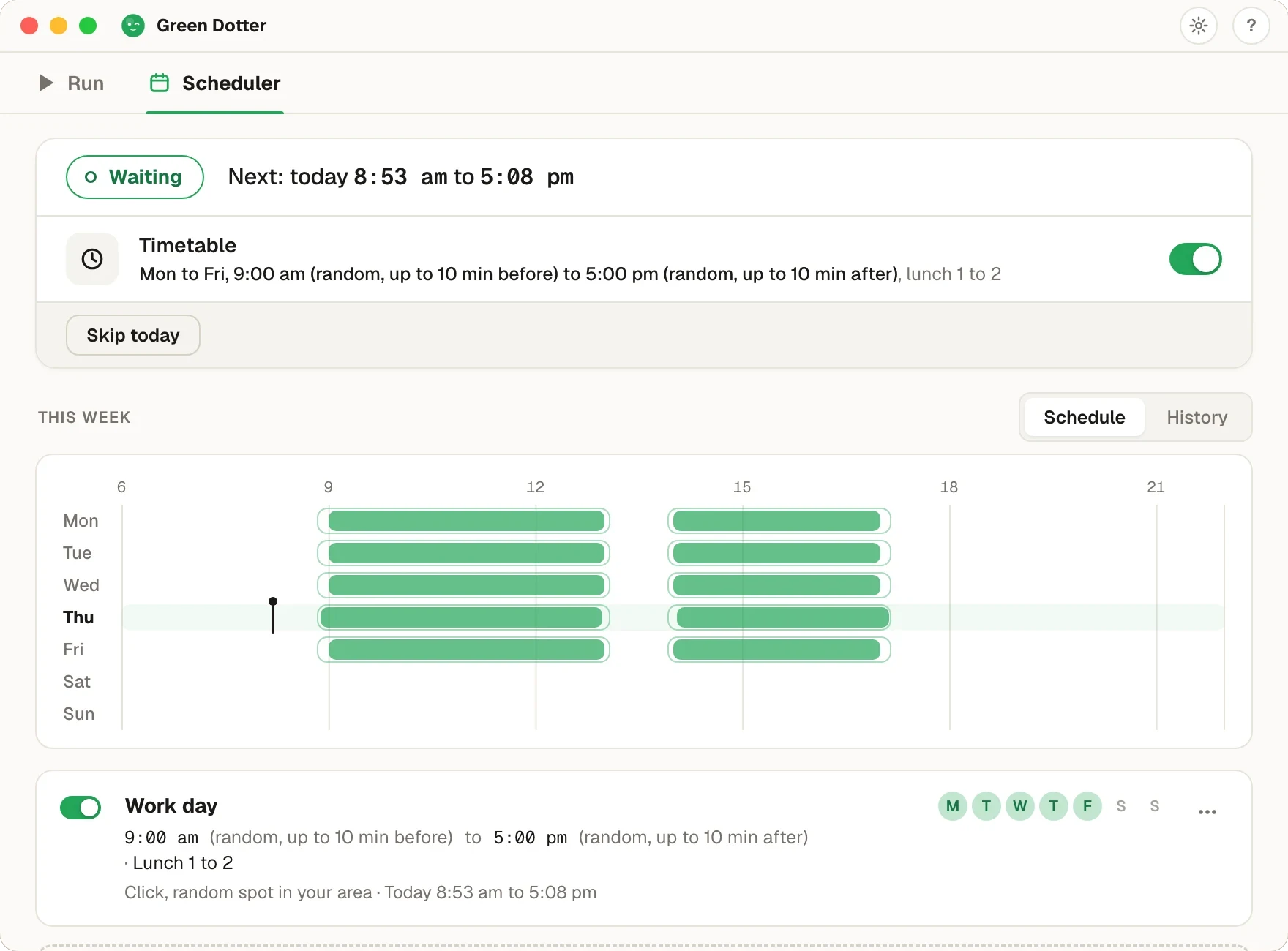
Start up to 10 minutes before 9:00. Stop up to 10 minutes after 5:00. Or pick exact times. Every start, stop and lunch time has its own setting.
Green Dotter starts and stops itself. In the tray is fine. History shows what actually happened next to what you planned, with named gaps for things like sleep, a locked screen or you using the mouse.
Green bars are your planned days. The pale outline around each bar shows how far the random start and stop can drift. Today is the bold row.
Using Wiggle? Pick Wiggle on the Run screen, press Every…, choose your days and times, and save. It shows up in the Scheduler tab too.
Green Dotter has to be running. In the tray is fine.
Your computer needs to be on and signed in. Green Dotter can't wake a sleeping computer. If it sleeps or the screen locks mid-day, your schedule pauses and carries on when you're back.
Screenshots show the Scheduler beta with sample times.
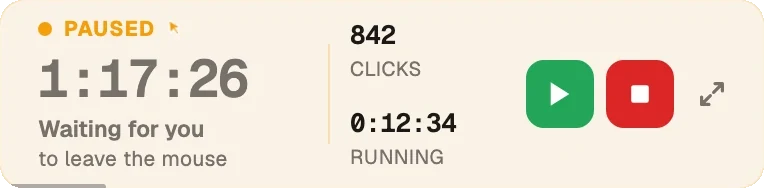
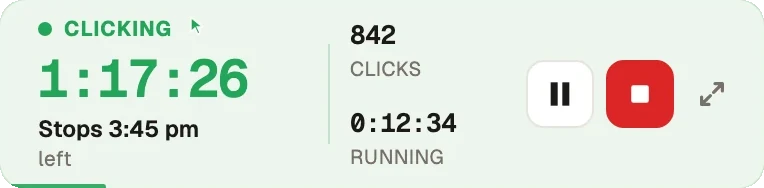
Start a session and Green Dotter folds down into a small bar. Drag it to a corner and get on with your day. One glance tells you how long is left and what time it will stop.
The big number is how long is left. Underneath, a plain clock time like Stops 3:45 pm. Clicks so far and time running sit beside it, with pause and stop on the right.
The bar comes in light and dark, so it looks right on a dark desktop too.
With no end time, the bar says it runs until you stop, and counts wiggles instead of clicks.
Pause turns into resume. The clock time it stops moves along while you're paused.
Touch the mouse and the bar turns amber and waits for you to let go, just like the full window.
The first time, Green Dotter asks if you want the compact bar or the full window. Either way, you can change your mind in Settings.
There's a small shrink button next to Pause and Stop. One click and the window folds down. One click on expand and it's back to full size.
Green Dotter runs entirely on your computer. It doesn't need an account, doesn't read your messages, and doesn't record your screen.
Green Dotter is a user-controlled automation tool. Before using any auto clicker or presence tool on a work device, check your employer's policies and make sure your use is allowed.
One clean dashboard. One green button. One small favour off your plate.
Download it and press Start.