Stop your Mac dimming, locking, or sleeping in the middle of a long task. This page covers every way to keep your Mac awake, from System Settings to controlled auto clicking. Free download for Apple Silicon and Intel.
Green Dotter is available two official ways: install from the Microsoft Store, or download it directly from green-dotter.com. No account, email address or subscription is required.
Pick a mode and press Start. The first time, macOS asks once for Accessibility access so the app can click. That's it.
Choose one exact spot, or draw a box and it clicks somewhere inside it. Clicks land at random intervals inside the range you set, so the rhythm isn't mechanical.
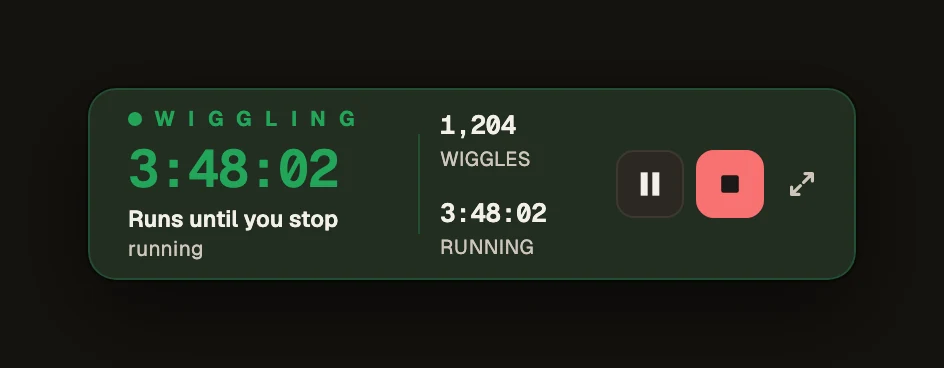
Nothing to pick. The mouse drifts a little, the way yours does while you read. Choose how long, press Start, and leave it.
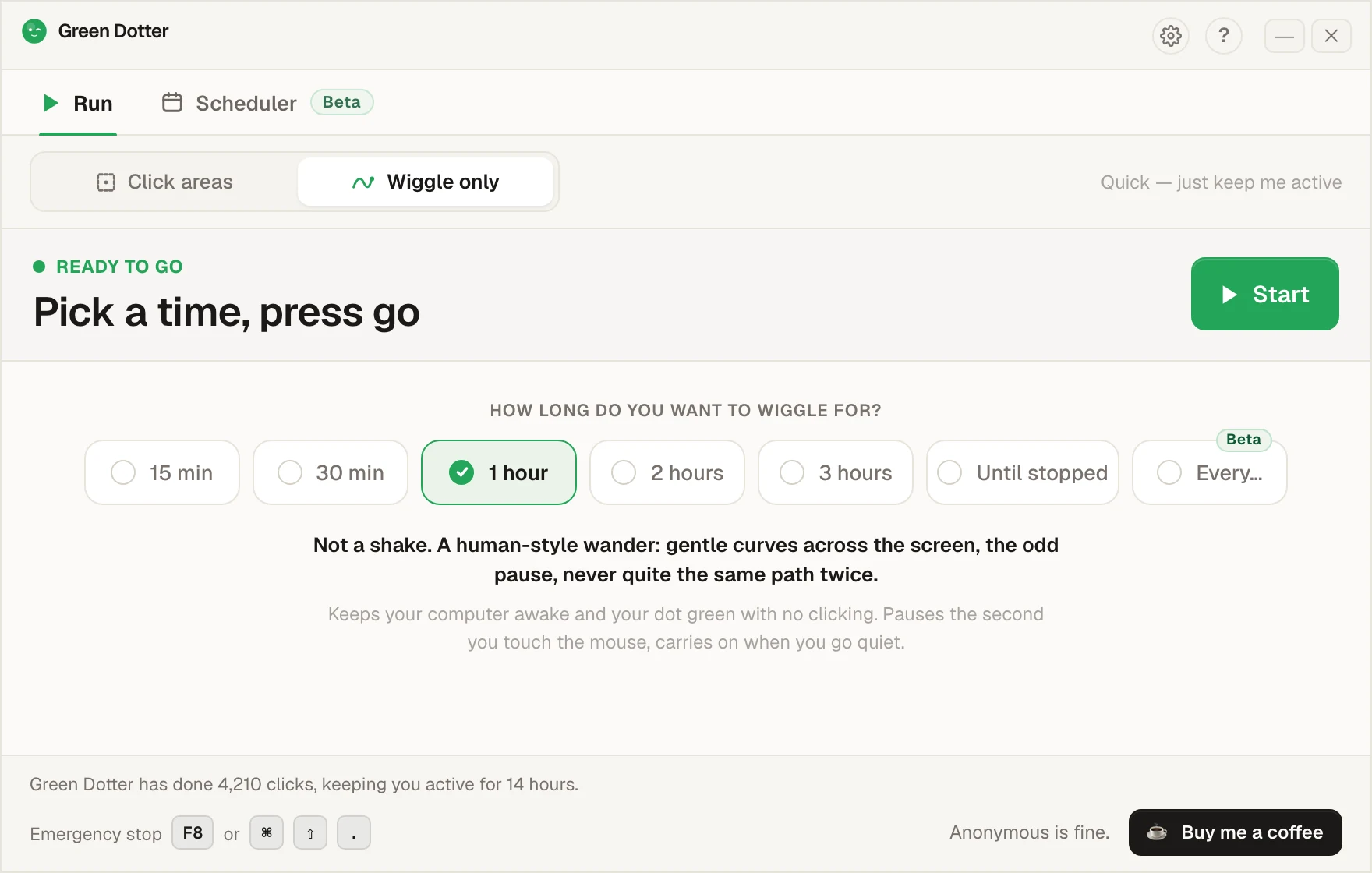
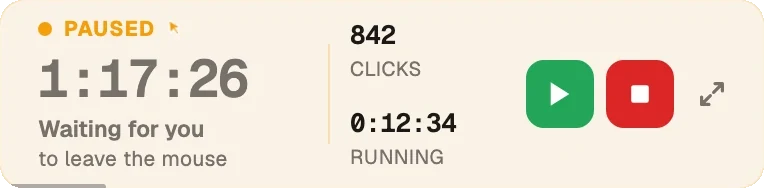
Touch the mouse and it pauses, then carries on once you stop. While it runs it folds down to a small bar you can park in a corner.
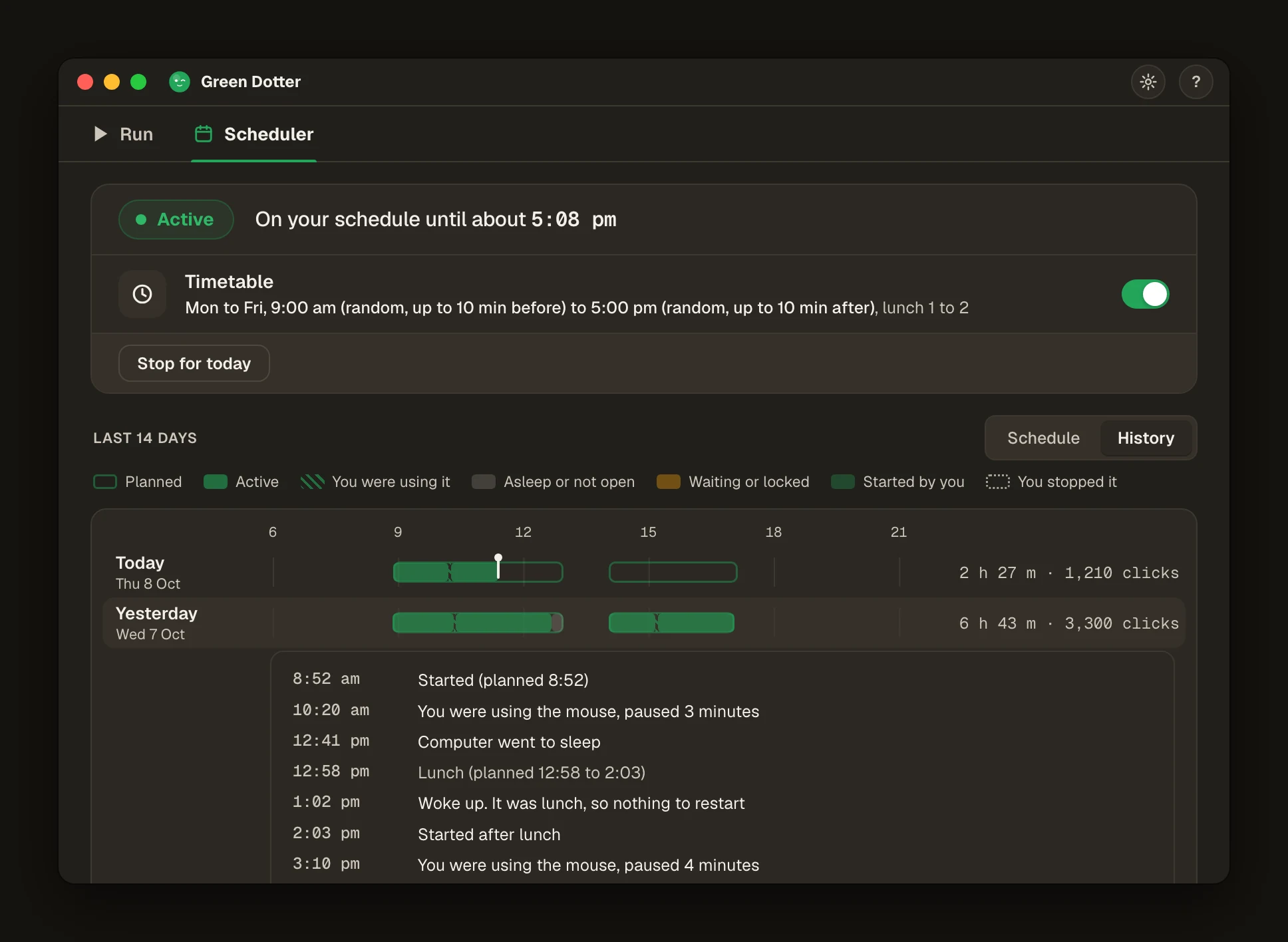
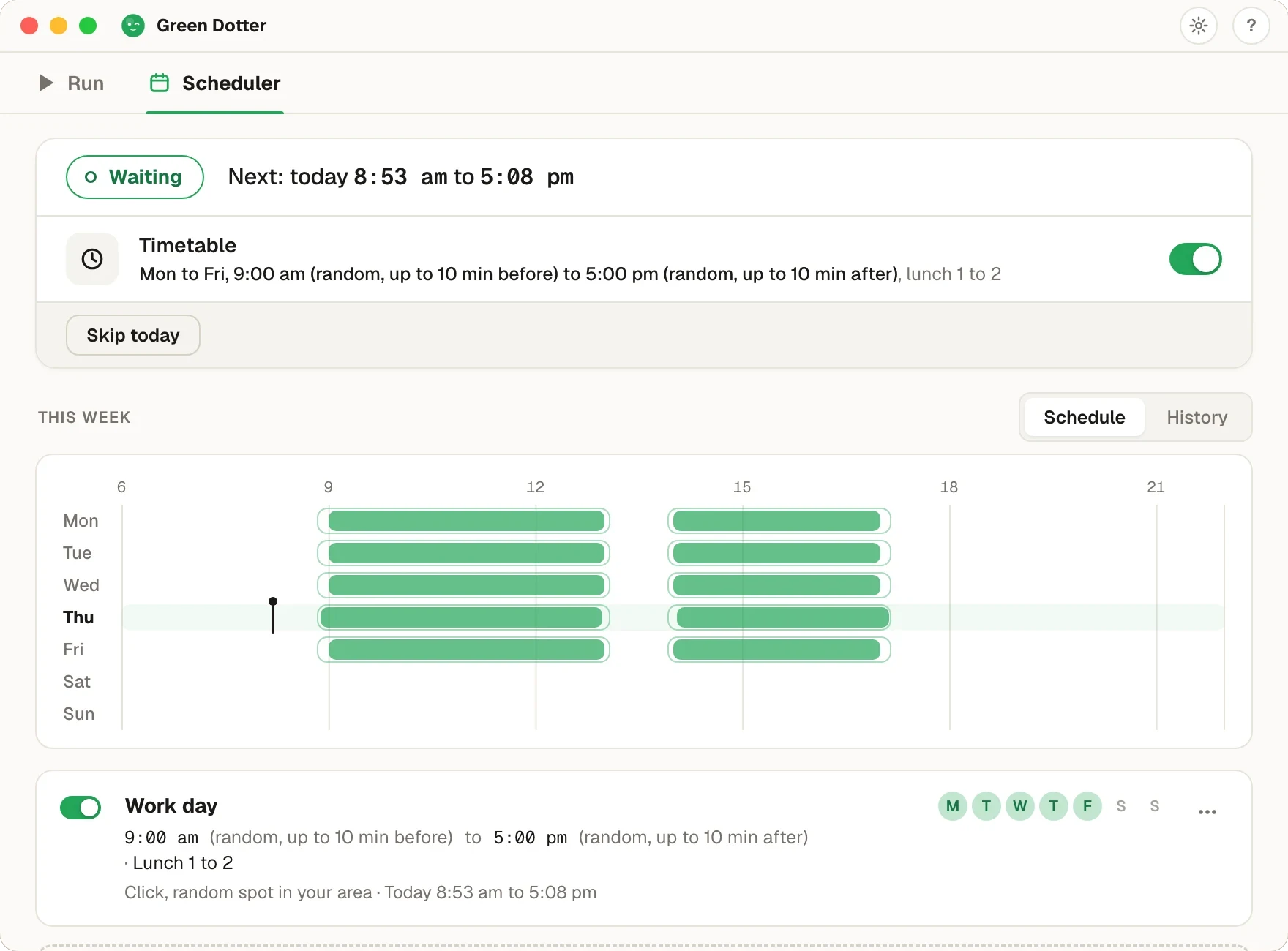
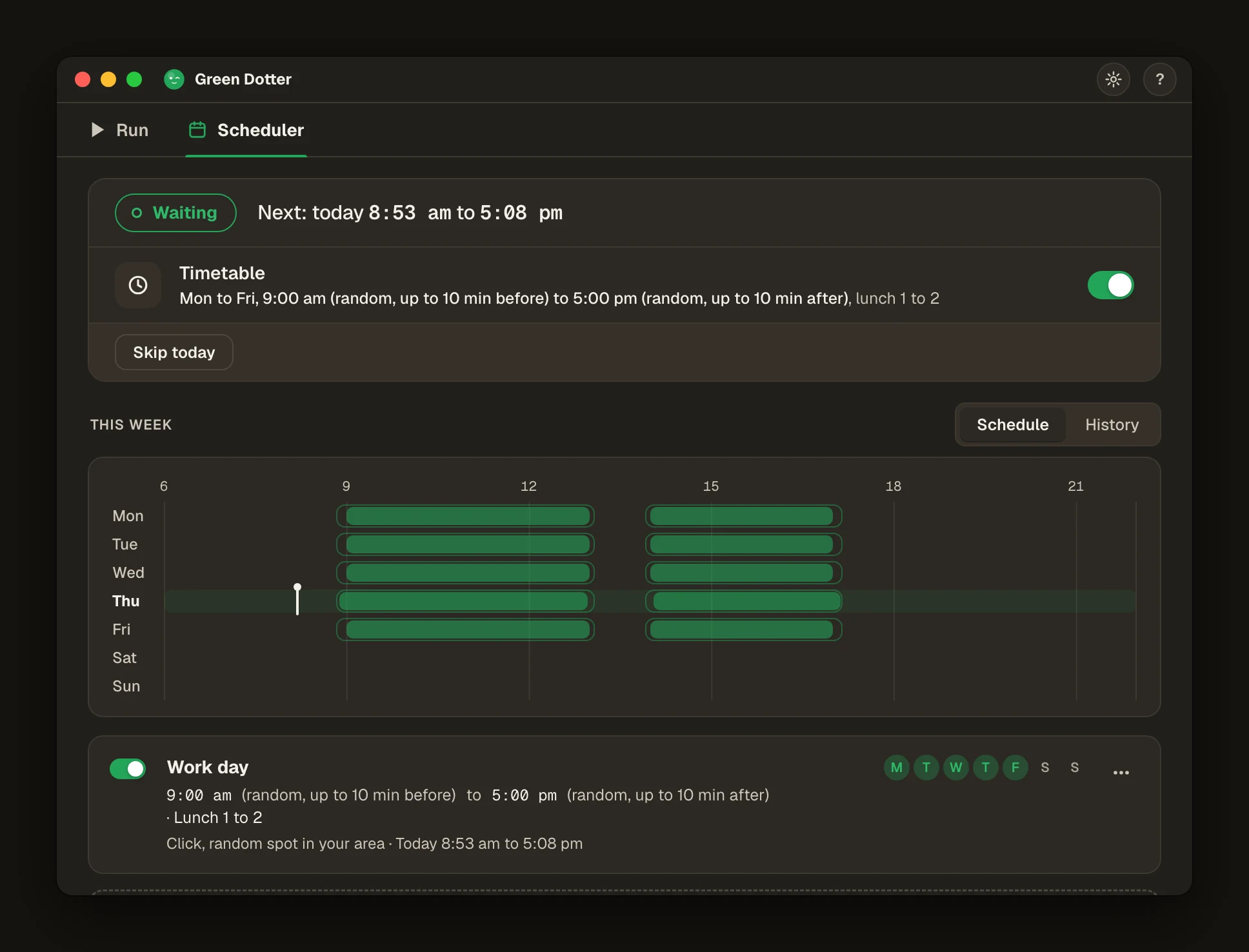
Pick your days and hours, add a lunch break. Start and stop times shift by a few minutes each day, so it isn't clocking in at 9:00 sharp.
Green Dotter has to be open, the tray is fine, and your computer on and signed in. It can't wake a sleeping computer. It's new, so if something looks off, tell us.
macOS has power settings designed to save energy and protect your battery when the machine isn't in use. That's sensible most of the time. But idle timers can't tell the difference between "doing nothing" and "reading a long document" or "waiting for a render, download, or backup to finish".
When your Mac sees no keyboard or trackpad activity, it dims the display, locks, then sleeps. Common culprits:
The fix depends on what you're doing and how much control you have over the machine.
If you have full control of your Mac, the built-in settings are the simplest starting point.
Display sleep: go to System Settings → Displays → Advanced and increase the screen sleep timer. Set it to "Never" when plugged in for long sessions.
Battery vs power adapter: System Settings → Battery lets you set different behaviour on battery and on the power adapter. Sleep timers are usually shorter on battery.
Lock Screen: System Settings → Lock Screen controls how long before the screen locks once sleep begins.
Low Power Mode: on laptops this can shorten idle timers. Turn it off during long sessions.
Limitation: on managed work Macs your organisation may control these settings, so you may not be able to change them. See the dedicated Mac auto clicker page for a controlled-activity option, or the broader keep your computer awake guide.
macOS ships with a Terminal command called caffeinate. Running it keeps your Mac awake until you stop it, without changing your saved power settings, handy for a one-off long task. It works the same on Apple Silicon and Intel Macs.
If you'd rather not use Terminal, small menu-bar utilities can toggle a keep-awake lock on and off. These are good when you simply need the screen to stay on. The best known are Caffeine and Amphetamine; both pages explain where Green Dotter differs.
Limitation: these stop the Mac sleeping, but they don't create any activity. If you also need apps like Teams or Slack to keep seeing you as active, a wake-lock alone may not be enough. Those rely on input, not just an awake screen. More on that in keeping your computer awake without changing every setting.
A mouse jiggler keeps a Mac awake by moving the cursor a little, enough that the machine doesn't register as idle. Hardware jigglers are USB devices; software jigglers run as apps. Both do the same job.
They work well for basic keep-awake use. The limitation is control: a jiggler moves the pointer but doesn't let you choose where it goes or whether it clicks anything. For a personal Mac that's usually fine. When you want activity confined to a specific, safe part of the screen, it starts to feel blunt.
Green Dotter keeps your Mac active by clicking a spot or an area you choose. You pick one exact spot, or a safe area of the screen, and Green Dotter clicks it on a randomised schedule. When you come back and move the trackpad or mouse, it pauses automatically and gets out of your way.
Because it generates real activity, it keeps the screen awake and keeps presence-based statuses from drifting to away. Green Dotter is useful when:
It runs natively on Apple Silicon and Intel. It's a local app. No account. No cloud. Free.
Green Dotter's Scheduler (beta) starts and stops itself on the days and times you pick. Press Use this on the Weekdays, 9 to 5 card and it's set up in one click. Add a lunch break if you want one, and choose click or wiggle.
Make the times a little random, such as starting up to 10 minutes before 9:00 and stopping up to 10 minutes after 5:00. Your Mac has to be awake and signed in, and Green Dotter has to be running. In the tray is fine. It can't wake a sleeping Mac, and closing the lid still puts it to sleep.


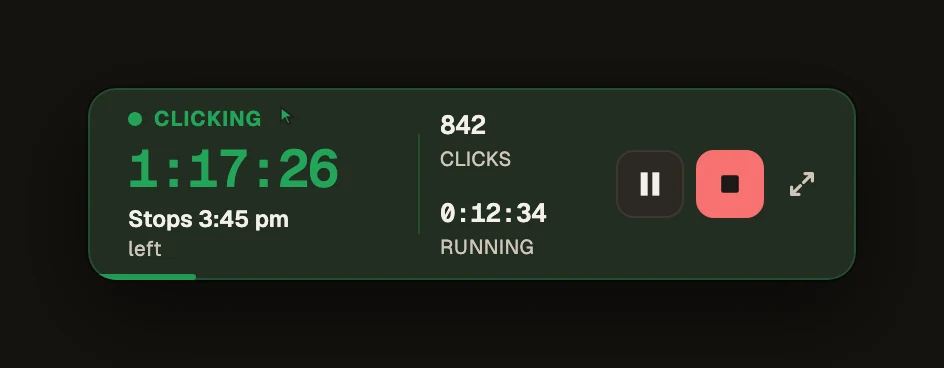
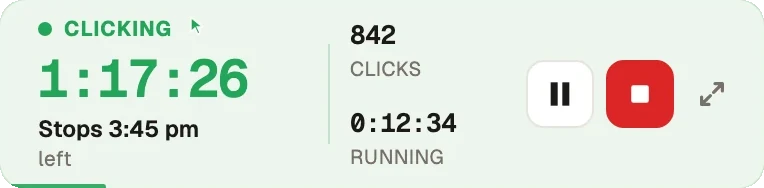
While a session runs, Green Dotter folds down into a small bar on your desktop. It shows how long is left and the clock time it will stop, like Stops 3:45 pm. Pause and stop buttons sit right beside it.
Start it before you walk away and your Mac stays awake without a big window in the way. When you're back, one click on the expand button gives you the full window again.


| Option | Mac | Windows | Best for |
|---|---|---|---|
| Built-in power settings | Yes | Yes | Simple, permanent sleep control |
| caffeinate / keep-awake app | Yes | No | Temporary Mac wake-lock |
| Mouse jiggler | Yes | Yes | Basic cursor movement |
| Green Dotter | Yes | Yes | Click mode or human-style wiggle mode. Auto-pause. Free. |
If you just need the screen to stay on, start with System Settings or caffeinate. If you need controlled activity in a specific screen area, or want apps to keep seeing you as active, Green Dotter is the better fit.
On organisation-managed Macs, some power and activity settings may be locked. Check what's allowed before changing settings or installing tools. Green Dotter is a local desktop utility that performs clicks inside the area you configure. Use it for legitimate desktop automation and check your workplace policies if you're unsure.
Green Dotter is available two official ways: install from the Microsoft Store, or download it directly from green-dotter.com. No account, email address or subscription is required.