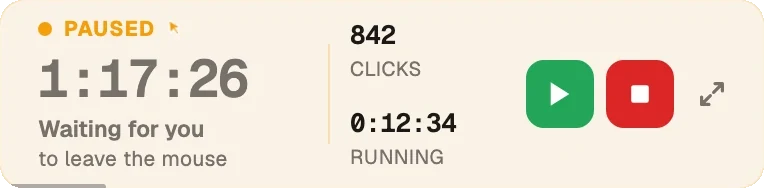
Zoom's own help pages say Team Chat marks you Away after about 15 minutes of inactivity; in our own test it took closer to 24. Either way, a Green Dotter Wiggle session kept it Available for the full half hour we ran it, and pauses the moment you touch the mouse yourself.
Green Dotter is available two official ways: install from the Microsoft Store, or download it directly from green-dotter.com. No account, email address or subscription is required.
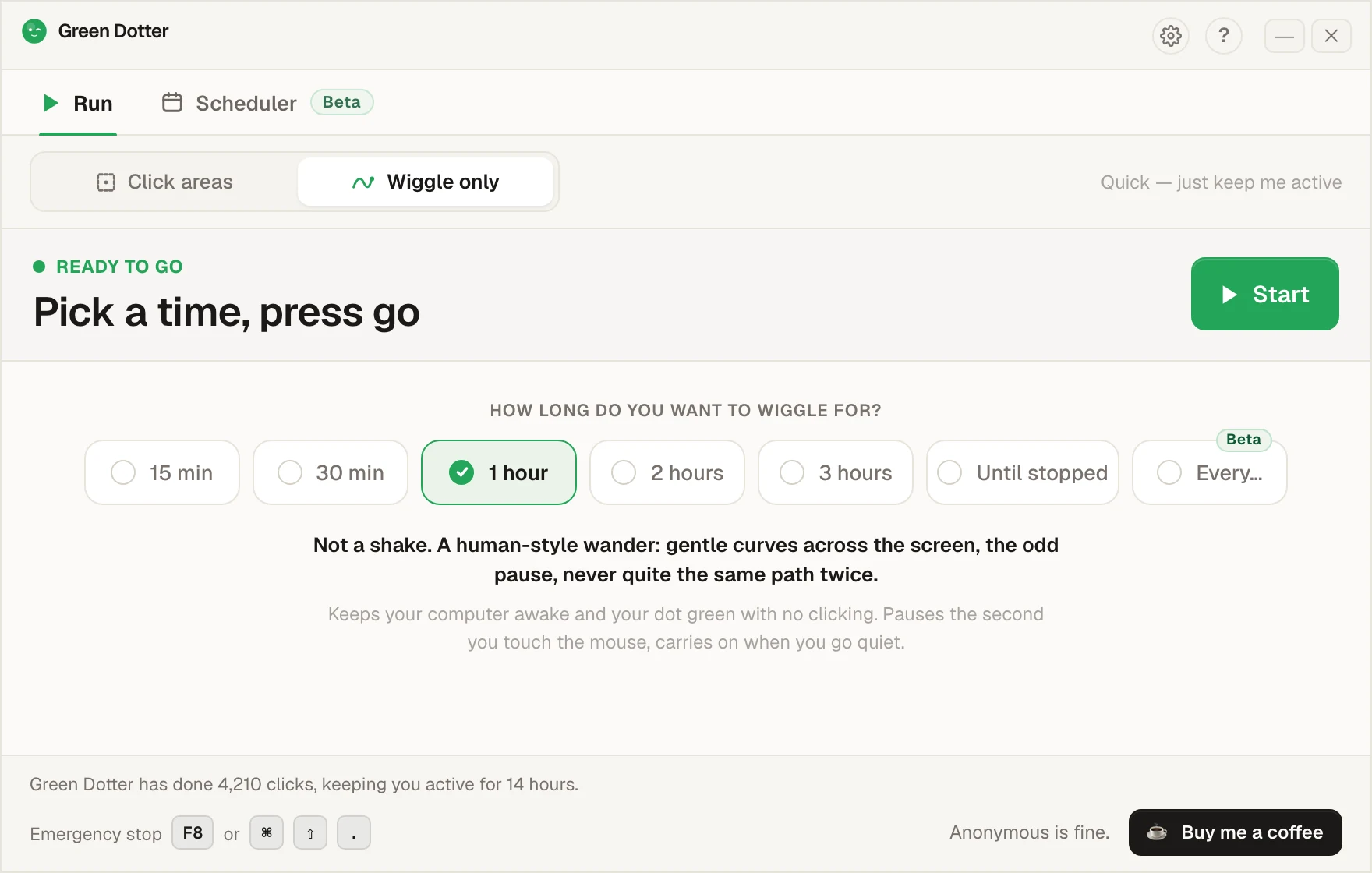
Pick a mode and press Start. That's the whole job.
Choose one exact spot, or draw a box and it clicks somewhere inside it. Clicks land at random intervals inside the range you set, so the rhythm isn't mechanical.
Nothing to pick. The mouse drifts a little, the way yours does while you read. Choose how long, press Start, and leave it.
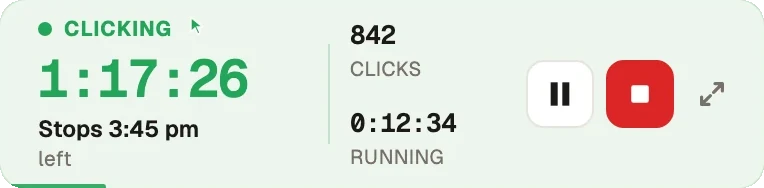
Touch the mouse and it pauses, then carries on once you stop. While it runs it folds down to a small bar you can park in a corner.
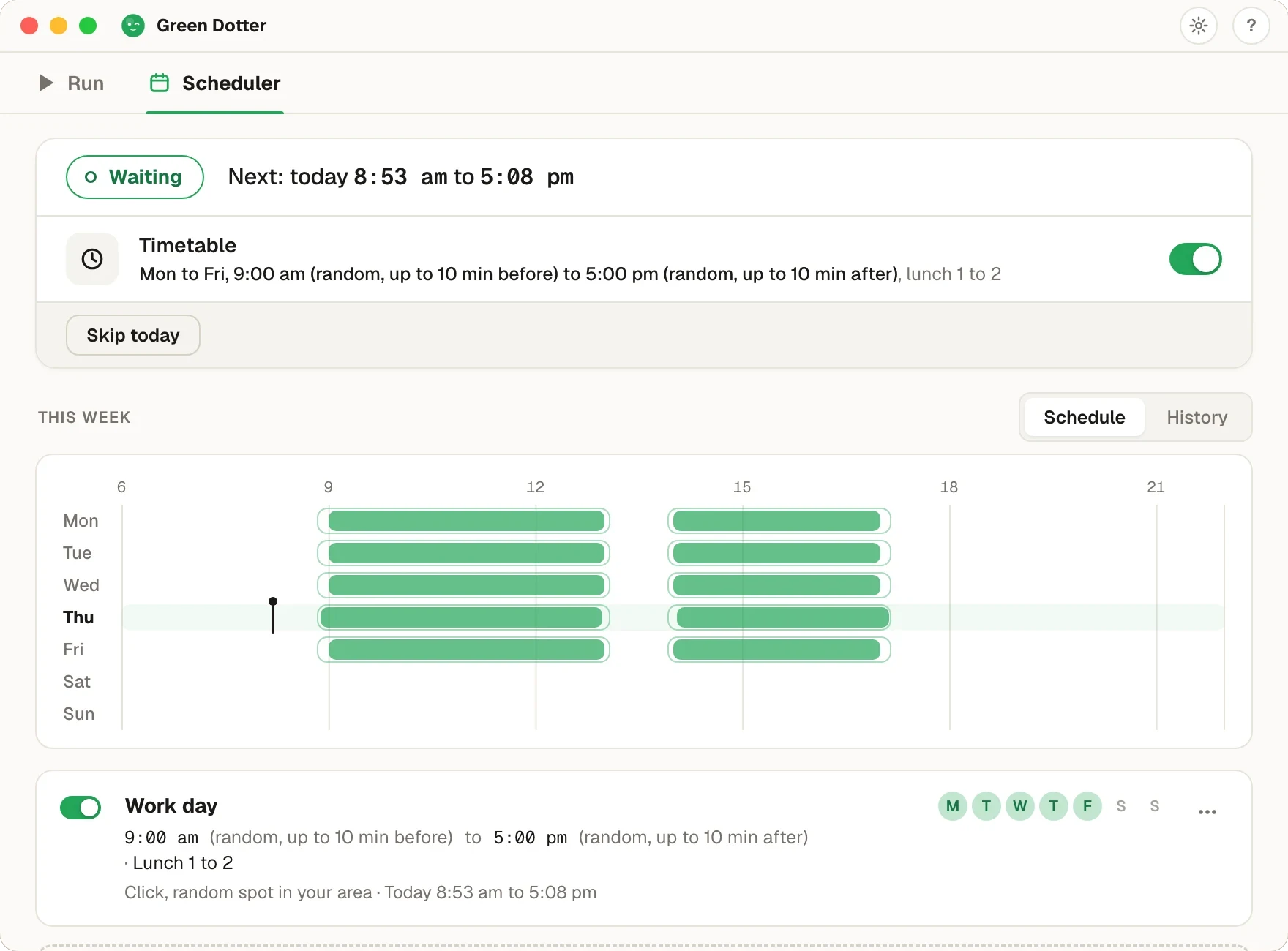
Pick your days and hours, add a lunch break. Start and stop times shift by a few minutes each day, so it isn't clocking in at 9:00 sharp.
Green Dotter has to be open, the tray is fine, and your computer on and signed in. It can't wake a sleeping computer. It's new, so if something looks off, tell us.
This is about Zoom's Team Chat, the messaging and channels side of Zoom, not the video call itself: a call has no idle status to keep active, only Team Chat does.
Zoom's own help pages describe a default window of 15 minutes without keyboard or mouse input before your status flips to Away, and an admin on a paid plan can set it anywhere from 2 to 60 minutes. It reads general computer activity, not activity inside Zoom specifically, so working in another app for that long is enough on its own.
We ran this ourselves on 24 September 2026: the real Zoom desktop app, Team Chat, a real account, on Windows. Left alone with no input, the status actually took about 24 minutes to flip to Away, longer than the 15 minutes Zoom's own pages describe.
We then reset it and started a Green Dotter Wiggle session. Thirty minutes later, still Available, no flip. We haven't run the same test on Mac yet, but the mechanism Zoom reads is the same kind of activity Green Dotter's Wiggle mode already keeps active for Slack and Teams on Mac, so we'd expect it to hold there too.
You can set a custom status and icon from your profile in Zoom, and it's a reasonable first step for a short break.
Limitation: a manual status sits alongside Zoom's own automatic read of your activity, and once the inactivity window passes, Zoom can move you to Away regardless of what you typed. That's fine for five minutes away from the desk. For anything longer, the manual status isn't what keeps you Available; the machine staying active is.
Wiggle mode is the right fit for Zoom. It reads general computer activity rather than clicks inside any particular app, so a smooth, human-style cursor drift is enough, and nothing gets clicked by accident in a chat or a call window.
Click areas is there if you'd rather use it, or if you're already running Green Dotter for another app that specifically needs a click, but it isn't necessary for Zoom.
Either way, touching the mouse or a key yourself pauses the session immediately, and it picks back up once you step away again. The same approach works for Webex.
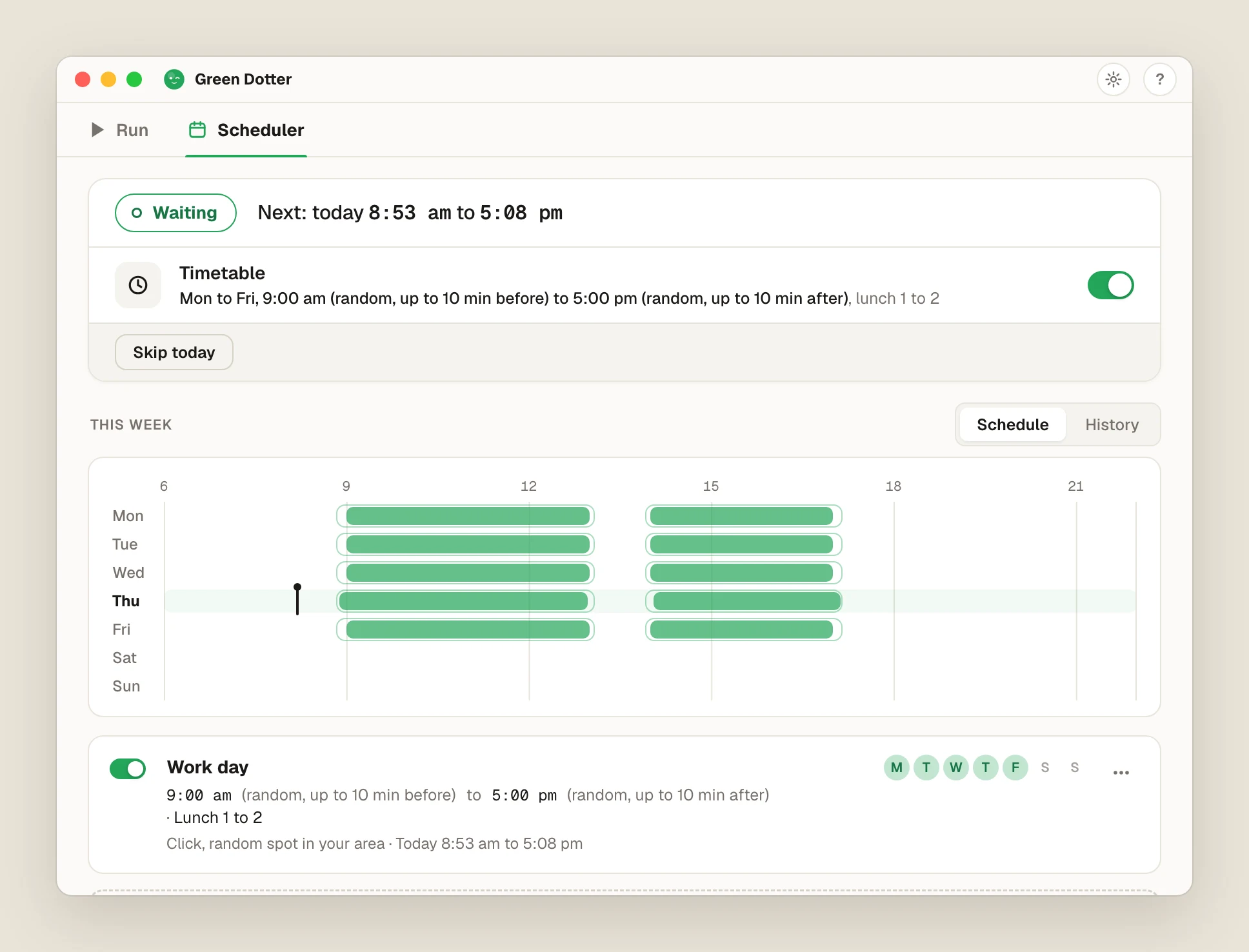
Green Dotter's Scheduler (beta) can start and stop itself on the days and times you pick, so it's on for your working day without you remembering to press Start. Make the times a little random if you like. The computer has to be on and signed in, and Green Dotter has to be running. In the tray is fine. It can't wake a sleeping computer.
It works for both Click and Wiggle, and History shows what actually happened.

Green Dotter is a tool you control, and this page describes what it does, not what you should do with it. Check your employer's policy on automation and status tools before running anything on a work or managed device. It doesn't hide activity from anyone or claim to be undetectable, and it won't get you past a locked screen or a device your IT department controls.
Green Dotter is available two official ways: install from the Microsoft Store, or download it directly from green-dotter.com. No account, email address or subscription is required.